
How to avoid double-booking a shared chair, room, or machine
A free staff member does not mean a shared chair is free. Set equipment quantity and service requirements in Desk, then check a sample conflict.
Desk Team
4 min read
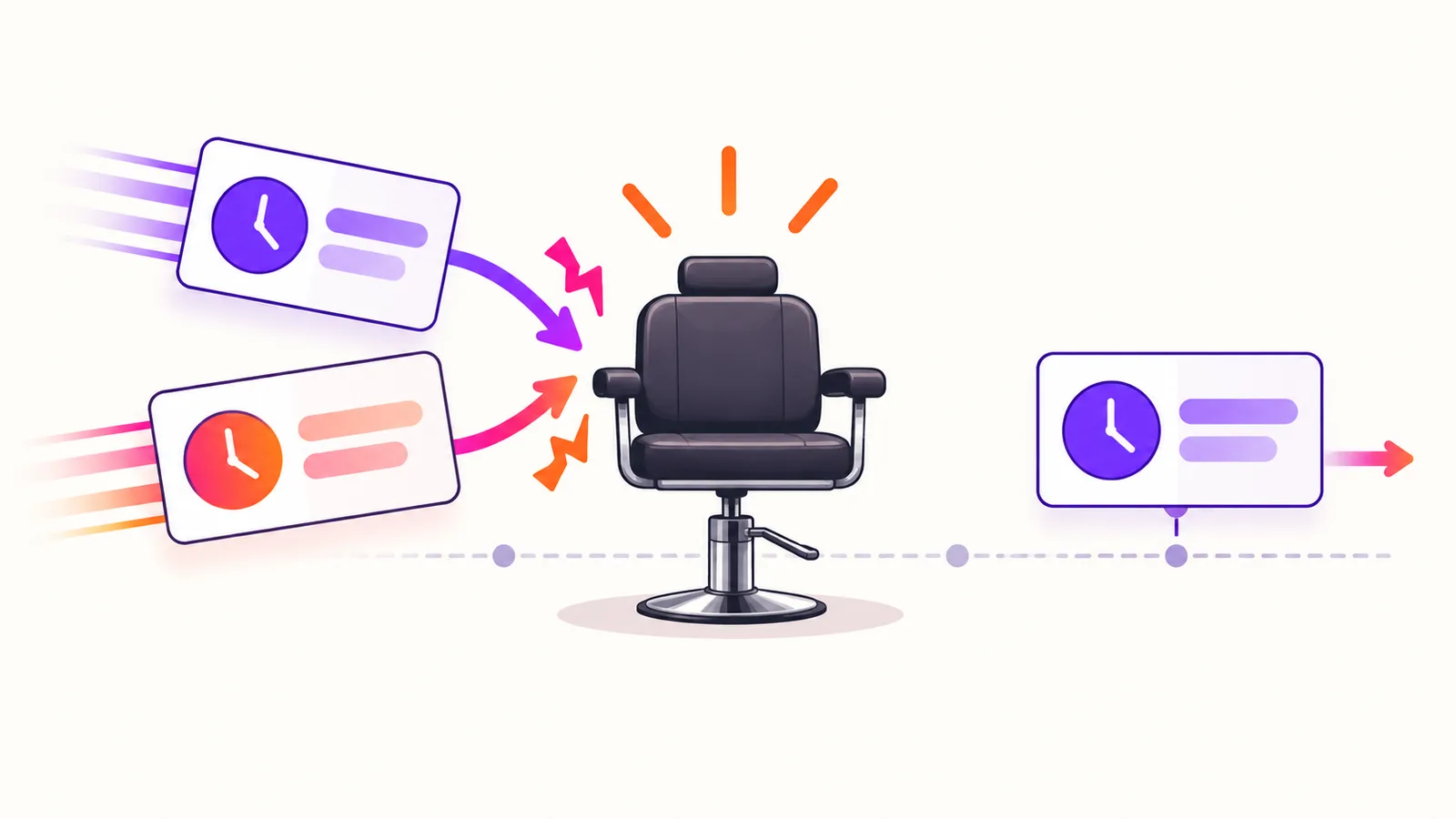
Specialist B is free at 10:30. But the only treatment chair is booked by specialist A until 11. Accepting B's appointment at 10:30 would leave someone waiting, even though B's calendar looks clear.
To avoid that conflict, check both the person doing the service and the resource it needs. In Desk, add the resource under Equipment, set its quantity, and attach it to each service that uses it. Desk reserves required equipment for the appointment's duration.
That last condition matters: equipment is not reserved beyond the end of the appointment. Your schedule also needs to account for any time it remains occupied afterward.
Count usable resources, not people
Start with the thing that limits how many appointments you can run at once: a chair, a treatment room, or a machine. Count the units that are actually available for those appointments.
Two specialists sharing one chair have a chair capacity of one. Three specialists sharing two interchangeable chairs have a chair capacity of two. Staff availability still needs its own check.
Only group units together when any of them can serve the same booking. A room with a fixed machine may not be interchangeable with an empty room. Do not treat different resources as one pool just because they are in the same building.
The quantities below are examples, not measurements of a Desk customer's business.
Attach the shared equipment to every service that needs it
Use the Desk mobile app to set up your services. The website's desktop dashboard does not replace the mobile service setup described here.
- Open Business Settings → Equipment. Add the shared resource and set Quantity to the number of usable units.
- Open Business Settings → Services. Add or edit a service that uses that resource.
- Set Duration and the required Team Member. In Required Equipment, select the resource used by the service.
- Repeat for each service that depends on the same resource. Check each team member's version of a service: durations can differ between members.
A service that is missing its equipment requirement can leave your scheduling rule incomplete. Naming it “Chair appointment” does not replace selecting Required Equipment.
Desk Free includes one team member. If your setup involves additional team members, you need Desk Pro; check the current plan and seat charges before inviting them.
Walk through one overlapping appointment
Here is a planning example with one chair and two specialists. Assume both specialists are working, and each service needs that same chair.
| Appointment | Specialist | Chair time | What to check |
|---|---|---|---|
| First booking | A | 10:00–11:00 | Uses the only chair |
| Proposed booking | B | 10:30–11:30 | Overlaps the first booking by 30 minutes |
| Later booking | B | 11:00–12:00 | No overlap, if the chair is ready at 11 |
Specialist B being free at 10:30 does not create another chair. The proposed booking needs a different time or another suitable chair.
Before sharing your booking link, check this kind of conflict in your own setup. Use clearly labeled test appointments without sending client messages. Confirm the service's equipment requirement and duration. Then, in a calendar timeline view, long-press the second test appointment and drag it into the occupied time.
Desk's calendar help describes this warning for a conflicting move: “Event could not be moved.” Required equipment being already booked is one documented example. This is documented behavior; the example above is not a live app test.
If the result differs, recheck the quantity, both services' equipment requirements, and their durations before relying on the setup. Afterward, open each test appointment and use Cancel Event to remove it from the schedule.
Include the time the resource is actually occupied
Suppose a service ends at 11, but cleaning keeps the chair unavailable until 11:10. An appointment ending at 11 does not reserve that chair until 11:10.
When planning durations, include the occupied time you need to protect. Increasing a service's duration also changes its appointment end time and the assigned specialist's schedule. Decide whether that fits your workflow before changing it.
This guide does not assume a separate automatic cleanup buffer. If the chair still needs cleaning, the 11:00 booking in the table is too early.
Check hours before sharing the link
Set Business Settings → Working Hours for each day you accept bookings, including breaks. These hours gate online booking. A team member's custom availability must also fall within the business's working hours.
Then check the whole setup together: the service, its specialist, its duration, the equipment quantity, and the hours. A resource rule cannot fix an incorrect service duration or a missing equipment requirement.
Once that setup is checked, follow our guide to putting your booking link on Instagram and Google. Share the link after the rules reflect what your business can actually deliver.
Download Desk for iPhone or Android to set up your services and appointments. Free includes unlimited appointments and clients for one team member, with no subscription. Additional team members require Pro; SMS and payment processing are charged separately.